
 The Analytics module delivers you performance and data analysis for the various other modules across Supportable.
In this module, you can explore your data and learn valuable insights about how your company is operating and how your customers are engaging with your business.
Access
Access to the Analytics module is based on two criteria:
- The seat a given user is in based on the subscription your company has purchased (Referrals seat, Marketing seat, Alumni seat, etc.)
- The permissions given be your Administrator. These permissions are granted through Setup > Users and Seats. For example, while you may be in a Marketing seat, your Administrator may only grant you access to the Marketing dashboards, even though your seat also has access to the Referrals dashboard.
General Layout
The module is divided up by 3 different dashboards, with each dashboard having a set of sub-tabs based on context.
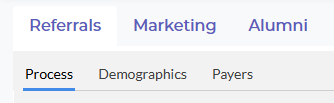
Each dashboard has a set of filters that are designed to help you interact with the various KPI, charts and visuals on the page.

Please note: Depending on the context of the visual you're looking at, some filters may not apply. Therefore the visual may not respond to the filter.
Interacting With Visuals
Most of the visuals in a dashboard are interactive. When hovering over a visual with a your cursor, you will be given a few contextual options.
Upper-right Options
Sort: This allows you to arrange the graph in different order based on the parameters that make up the visual.
Change Chart Type: You can choose from a menu of different types of charts to look at the data in a different way.
Maximize: You can expand the chart you're looking at to fill the window. This comes in handy when you're sharing your screen.
Export: Download the data that makes up the visual you're looking at or just export an image of the visual in the state you have it in.
Please Note: The data exported from a visual will only export the summarized/aggregated data. To export data in it's raw form, see the Data Table section below.
Tooltip Options
When you click on an area in a chart, you few options will be revealed.
Drill Down: Some visuals allow you to drill into hierarchal data.
Filter Including/Excluding Value: This will allow you to see only the lines of data associated with what you've filtered.
Tip: When you interact with visuals using tooltip options, the other visuals will respond.
Another Tip: When you want to get your dashboard back to it's default state, click the Reset button in the filters menu.
Data Table
Each page contains a table of data for you to view your information in simple rows and columns. Like the other visuals, this table will respond to the filters and other visuals as you interact with them.
Unless you want to export summarized data (from visuals), this is the table we recommend using with exporting data. Here's how you can export data in row/column fashion.